Network protection tips for online security are something every home user should take seriously, regardless of technical skill level. Your home network is the gateway to your personal data, banking information, work files, and private communications. A poorly secured network is an open invitation for attackers who scan residential IP ranges looking for easy targets.
According to multiple industry reports, a significant percentage of cyberattacks now target home networks, especially as remote work has blurred the line between personal and professional environments.
The good news is that you don't need a computer science degree to lock things down. This guide walks you through four practical steps that will dramatically improve your home network security. If you're new to the topic, our overview of cybersecurity definitions, threats, and best practices provides a strong foundation before you start.
Key Takeaways
- Change your router's default admin credentials immediately after setup to block easy intrusions.
- Enable WPA3 or WPA2 encryption on your Wi-Fi to protect all wireless traffic.
- Keep router firmware and all connected device software updated on a regular schedule.
- Segment your home network so IoT devices cannot access your primary computers.
- Use strong, unique passwords for every account and enable two-factor authentication everywhere possible.

Step 1: Secure Your Router Configuration
Your router is the single most important device on your home network. Every packet of data, whether it's a Netflix stream or a bank transfer, passes through it. Despite this, most people leave their routers running with factory default settings. That is the equivalent of leaving your front door unlocked with a sign that says "come on in." Attackers use automated tools to scan for routers still running default usernames and passwords, and they can gain full control within seconds.
Change Default Credentials
The first thing you should do with any new router is change the admin username and password. Default credentials like "admin/admin" or "admin/password" are publicly documented for every router model. Log into your router's admin panel (typically at 192.168.1.1 or 192.168.0.1), navigate to the administration section, and set a strong, unique password. This simple step eliminates one of the most common attack vectors against home networks and is one of the foundational network protection tips for online safety that experts universally recommend.
Never use your Wi-Fi password as your router admin password. These are two separate credentials protecting two different things.
Enable Strong Encryption
After locking down admin access, turn your attention to wireless encryption. WPA3 is the latest standard and offers the best protection available for consumer routers. If your router doesn't support WPA3, use WPA2-AES at minimum. Avoid WEP and WPA-TKIP entirely, as both have well-known vulnerabilities that attackers can exploit in minutes using freely available tools. You can find the encryption settings under the wireless security section of your router's admin panel.
While you're in the wireless settings, change your network name (SSID) to something that doesn't identify the router brand or your household. A name like "NETGEAR-5G-Smith" tells an attacker both the hardware manufacturer and who lives there. Choose something generic. Also disable WPS (Wi-Fi Protected Setup), a convenience feature that has serious security flaws. Understanding the role of firewalls and antivirus as key online security tools will help you appreciate why the router's built-in firewall matters too.
Step 2: Update Firmware and Software Regularly
Outdated software is one of the primary ways attackers compromise home networks. Manufacturers regularly release patches that fix known vulnerabilities, but these patches do nothing if you never install them. The cyber threats landscape evolves constantly, with new exploits emerging weekly. Keeping your firmware and software current is a passive defense that works around the clock without requiring your attention once it's set up properly.
Router Firmware Updates
Router manufacturers release firmware updates to patch security holes, improve performance, and add features. Check your router's admin panel for an update option. Many modern routers support automatic firmware updates, which you should enable if available. If your router is more than five years old and no longer receives updates from the manufacturer, it's time to replace it. An unsupported router is a ticking time bomb on your network. For a broader perspective on update schedules, this guide on how often you should run security checks offers useful benchmarks.
Set a monthly calendar reminder to check for router firmware updates if your model does not support automatic updating.
Device and App Updates
Every device connected to your network is a potential entry point. This includes laptops, phones, tablets, smart TVs, security cameras, and even smart light bulbs. Enable automatic updates on all devices that support them. On Windows, make sure Windows Update runs regularly. On macOS, enable automatic updates in System Settings. For mobile devices, both iOS and Android offer automatic app and OS update options that you should turn on without hesitation.
Smart home devices deserve special attention because many have poor security track records. Some IoT manufacturers ship products with hardcoded passwords or stop issuing updates within a year of release. Before buying any connected device, research the manufacturer's update history. If they're known for abandoning products quickly, spend your money elsewhere. Recognizing the top cyber threats every beginner should know helps you understand why outdated devices are so dangerous in the first place.
Step 3: Segment and Monitor Your Network
Network segmentation sounds like an enterprise concept, but most modern home routers support it through a guest network feature. The idea is straightforward: keep your trusted devices (computers, phones) on one network and put less secure devices (IoT gadgets, guest devices) on a separate one. This way, if a smart thermostat gets compromised, the attacker cannot jump laterally to your laptop where your banking sessions live. This is one of the most effective network protection tips for online security that very few home users actually implement.
Create Separate Networks
Most routers let you create a guest network with a different SSID and password. Place all IoT devices, including smart speakers, cameras, robot vacuums, and smart plugs, on this guest network. Configure the guest network so that devices on it cannot communicate with devices on the primary network. Some routers label this feature "AP isolation" or "client isolation." This single configuration change dramatically reduces your attack surface with almost no impact on convenience or functionality.
Some smart home ecosystems require devices to be on the same network for features like local control. Test your setup after segmenting to confirm everything still works.
Monitor Connected Devices
Knowing what's connected to your network is a basic security hygiene practice. Log into your router's admin panel regularly and review the list of connected devices. Most routers display the device name, MAC address, and IP address. If you see something unfamiliar, investigate immediately. It could be a forgotten gadget, or it could be an unauthorized device. Free tools like Fing (available on iOS and Android) can scan your network and identify every connected device in seconds.
Consider enabling your router's built-in logging features as well. Logs can help you spot unusual activity patterns, such as a device sending large amounts of data at odd hours. For businesses or advanced home users, enterprise-grade API security is a separate but related consideration; this resource on best API security options covers that territory. At the home level, simple monitoring habits are what matter most. Review your device list at least once a month and remove anything that doesn't belong.
"A network you don't monitor is a network you don't control."
| Setting | Recommended Value | Why It Matters |
|---|---|---|
| Admin Password | Strong, unique (16+ characters) | Prevents unauthorized router access |
| Wi-Fi Encryption | WPA3 (or WPA2-AES) | Protects wireless traffic from eavesdropping |
| WPS | Disabled | Eliminates brute-force PIN vulnerability |
| Remote Management | Disabled | Blocks external access to router admin panel |
| Firmware Updates | Automatic (if available) | Patches known security vulnerabilities |
| Guest Network | Enabled for IoT devices | Isolates less secure devices from main network |
| UPnP | Disabled | Prevents devices from opening ports automatically |
Step 4: Strengthen Authentication and Access Controls
Even with a well-configured router and segmented network, weak passwords remain a major vulnerability. Authentication is your last line of defense when everything else fails. If an attacker manages to intercept your credentials, strong passwords and multi-factor authentication can still stop them cold. These network protection tips for online security apply to every account and device connected to your home network, not just the router itself.
Password Best Practices
Use a unique password for every account and device. Password reuse is one of the most dangerous habits in cybersecurity because a single breach exposes every account sharing that password. A password manager like Bitwarden, 1Password, or KeePass generates and stores complex passwords so you only need to remember one master password. Aim for passwords that are at least 16 characters long, combining uppercase and lowercase letters, numbers, and special characters. Our guide on how to create strong passwords as a beginner walks through this process step by step.
For your Wi-Fi password specifically, use a passphrase of 20 or more characters. Something like "correct-horse-battery-staple-river" is both memorable and extremely difficult to crack through brute force. Avoid passwords that contain personal information like birthdays, pet names, or addresses. Attackers harvest this data from social media profiles and use it to generate targeted password guesses. Change your Wi-Fi password at least once a year, or immediately if you suspect unauthorized access.
Enable Two-Factor Authentication
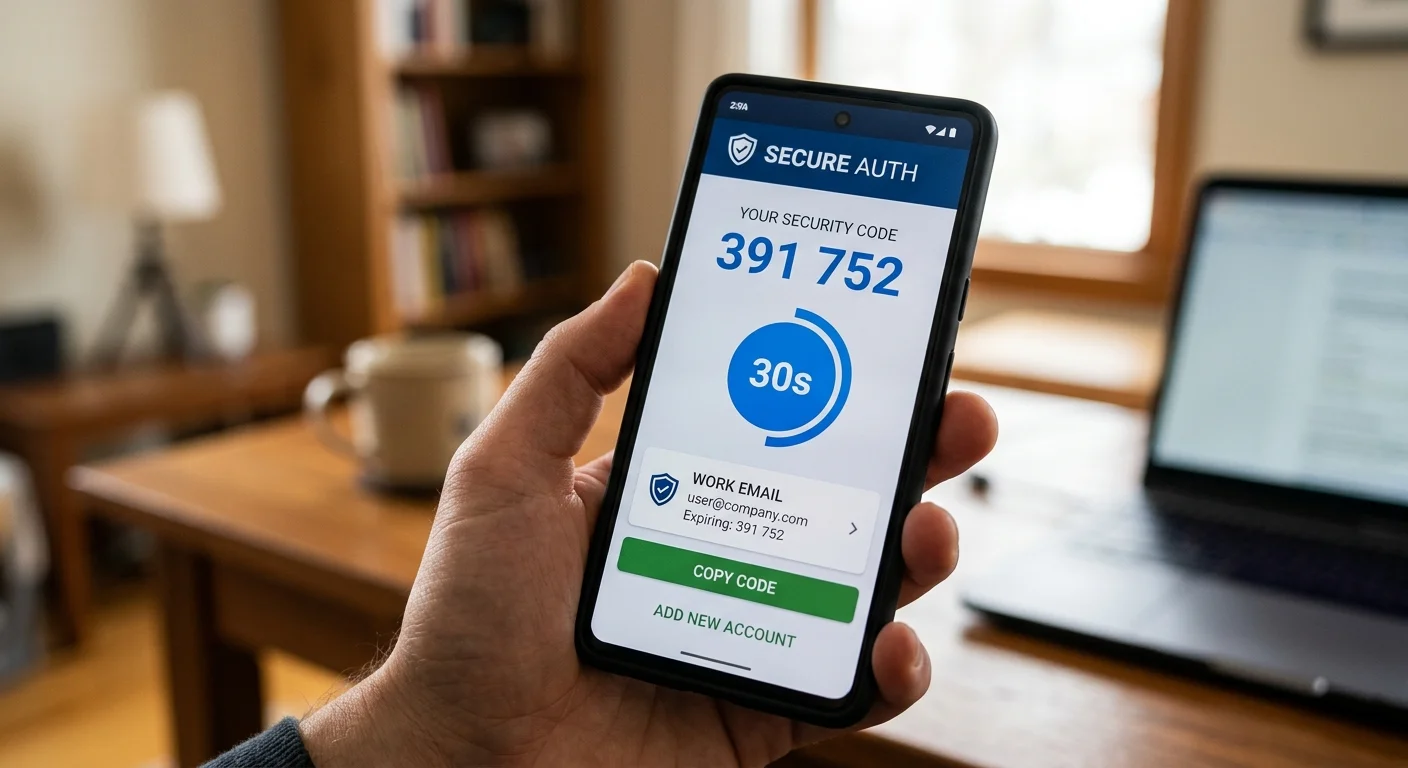
Two-factor authentication (2FA) adds a second verification step beyond your password. Even if someone steals your password, they cannot log in without the second factor, which is typically a code from an authenticator app or a physical security key. Enable 2FA on your email, banking, social media, and cloud storage accounts at minimum. Authenticator apps like Google Authenticator, Authy, or Microsoft Authenticator are more secure than SMS-based codes, which can be intercepted through SIM-swapping attacks.
Some routers now support two-factor authentication for their admin panels as well. If yours does, enable it. This adds protection against both remote and local attacks on your router's configuration. For beginner learners, the concept might feel like overkill, but 2FA is one of the single most effective security measures available today. It takes five minutes to set up and provides ongoing protection that works silently in the background every time you log in.
Frequently Asked Questions
?How do I log into my router's admin panel to change credentials?
?Is WPA3 worth upgrading to if my router already uses WPA2-AES?
?How long does securing a home router actually take to do properly?
?Can attackers still break in if I change defaults but leave WPS enabled?
Final Thoughts
Securing your home network doesn't require expensive equipment or advanced technical knowledge. The network protection tips for online safety covered here, from changing default router credentials to enabling two-factor authentication, form a practical security baseline that any beginner can implement in an afternoon.
Start with Step 1 and work through each section methodically. No single measure is perfect on its own, but layered together, these practices create a defense that will stop the vast majority of common attacks targeting home networks today.
Disclaimer: Portions of this content may have been generated using AI tools to enhance clarity and brevity. While reviewed by a human, independent verification is encouraged.